How to Sign In
After downloading and installing Laserfiche Mobile from the Windows Store, , open it.
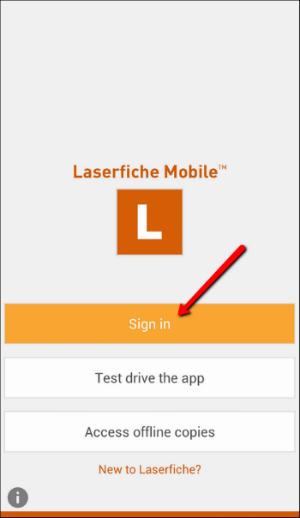
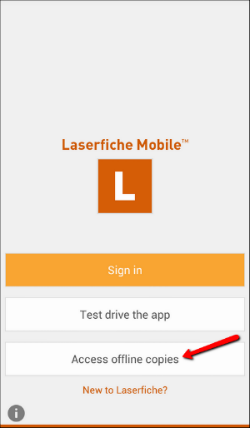
On the Laserfiche Mobile start page, press
- Sign in to sign in
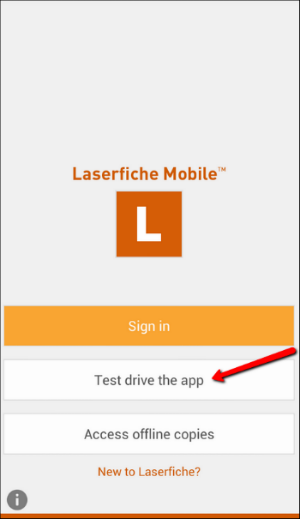
- Test drive the app to sign in with your temporary or support site account to test out the app
- Access offline copies to access copies of documents that have been saved offline. If this is your first time to open the app after installing it, you will not have any copies of offline documents saved.
- New to Laserfiche? to sign up for a temporary account to test the app.
- If you are outside of your organization's local network, sign in to your organization's VPN.
- Open the Laserfiche Mobile app.
- Press the Sign in button.
- On the Sign-In page:
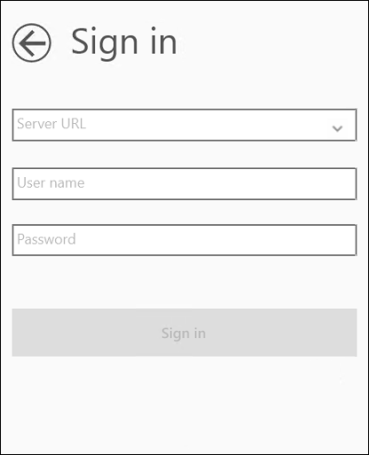
- Enter your Laserfiche Mobile Server URL in the Server URL box (e.g., https://LaserficheMobileServer/mobile). If you have signed in before, you can use the drop-down menu to select a server you previously connected to. If the defined server has been configured to use SSL, https:// will be appended to the front of the URL. If it has not configured to use SSL, http:// will be appended.
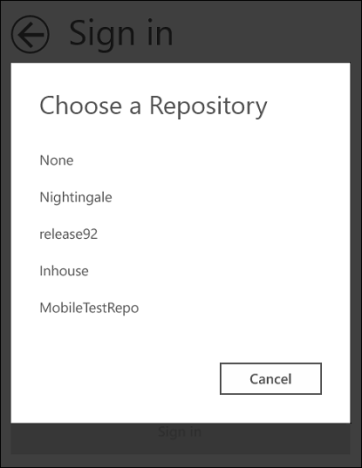
- The repositories available on that server will be populated in a list below the Server URL. Use the drop-down arrow and select the repository you want to connect to. If you are only using Forms, select None for the repository.
- If the Laserfiche Mobile Server entered has one or more Laserfiche Forms servers configured, another drop-down menu will appear under the repository drop-down menu. Select the Forms server you want to connect to from this list. If only one Forms server is configured, that one will be displayed.


- Enter your user name and password. If your organization only uses Windows Authentication, sign in by manually entering your Windows user name and password. Your user name should also include the domain, e.g., DOMAIN\user name.
- Press Sign in.
Note: Check with your administrator to see if you need to enter the URL as a fully qualified domain name (FQDN) such as mycomputer.laserfiche.com. Learn more.
Tip: If https://LaserficheMobileServer/mobile returns the error: "The server could not be found," try using your Laserfiche Mobile Server's IP address in the URL instead: https://IPAddress/mobile.
Note: If your administrator has not configured a Laserfiche Forms server on the Laserfiche Mobile Configuration page, you will not see the Laserfiche Forms Server option and will not be able to interact with forms.
Note: Your administrator can configure a default domain name on the Laserfiche Mobile Configuration page so you do not have to type one in.
- Enter your Laserfiche Mobile Server URL in the Server URL box (e.g., https://LaserficheMobileServer/mobile). If you have signed in before, you can use the drop-down menu to select a server you previously connected to. If the defined server has been configured to use SSL, https:// will be appended to the front of the URL. If it has not configured to use SSL, http:// will be appended.
Note: If you are using Laserfiche Mobile to submit and review forms only, you do not have to select a repository. Use the repository drop down menu and select None. Once signed in, you will only see forms. If you do not have a repository configured, the repository drop-down will not be displayed after entering the Server URL.
You can test drive this app by signing in with a temporary account or with your Laserfiche Support Site email and password. Once signed in, you will have access to a "sandbox" repository where you can add entries, edit fields (sample templates and fields are included in the trial), and more. However, other people cannot add to or see this repository. Additionally, the entries in this repository are not secure and can be accessed by Laserfiche staff.
Note: If a temporary account is used improperly, it will be blocked.
Sign in with a temporary account or Laserfiche Support Site account
- Press Test drive the app.
- Enter the email address associated with your temporary account or Laserfiche Support Site account.
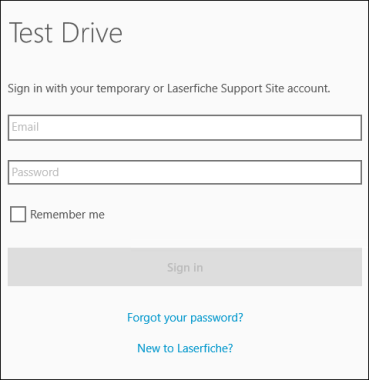
- Enter your password. If you can't remember your password, use the Forgot your password? link. You will be prompted to enter your email address. Press Submit and Laserfiche will send you a link to create a new password.
- Remember me: Select this checkbox if you want the app to remember your password. If the app closes or your connection terminates unexpectedly, you will be automatically signed back in once you re-open the app.Your password will be cleared if you sign out of the app normally.
If you previously saved copies of documents offline, this option lets you access those copies on your local device. For more information, see Viewing Document Copies Offline.
If your organization does not yet have Laserfiche Mobile, you can create a temporary account that lets you explore the app's features with a sample repository. Each user with a temporary account can add and edit documents in their own repository, but they cannot see or access documents from other users.
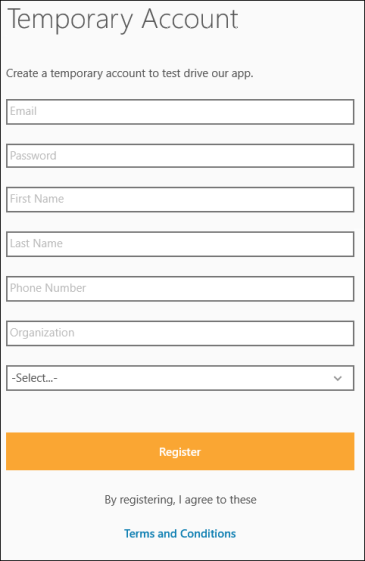
To create a temporary account
- Press the New to Laserfiche? link.

- In the Email and Password fields, provide your email address and a password. This information will become your temporary account credentials.
- In the corresponding fields, provide your first name, last name, phone number, organization, country, and state (if applicable).
- Press Register.
- Laserfiche will send an email to the email address specified for the temporary account. Click the link in the email to activate your account.
- Sign in to the app with your newly created account to test drive it.
|
This documentation is specific to version 9.3. You can find the most up-to-date help files for the latest version at Current Online Laserfiche Product Help Files. For further help or feedback, please see the Laserfiche Support Site. |
© 2015 Laserfiche. All Rights Reserved. |