 (Search Pane).
 Basic or click Reset at the bottom of the Search Pane.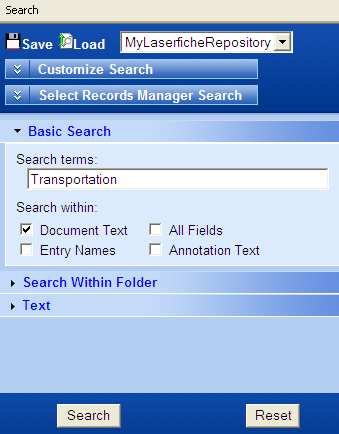
- Document Text
- All Fields
- Entry Names
- Annotation Text
The search feature is a powerful tool used to find any document. Knowing something about the document you are looking for helps you perform an appropriate search.
To perform a basic search for a document
(Search Pane).Basic or click Reset at the bottom of the Search Pane.Note: After performing a document or annotation text search, you will notice that the Contents Pane (displayed to the right of the search pane) will be split in half. The top half will display a list of documents containing the word "Transportation" , along with a count of occurrences. The bottom half will contain a list of occurrences for the currently selected document, along with a line of context and the page number on which it occurs.
To view a document from a search list
Do one of the following:
Note: You can also perform a basic search with the Quick Search located to the right of the toolbar above the Contents Pane. Enter the text you want to search, select Search Text, Search Entry Names, Search Fields and/or Search Annotations from the drop-down menu to the right of the Quick Search text box, and press the ENTER key.
| This documentation is specific to version 8.3. You can find the most up-to-date help files for the latest version at Current Online Laserfiche Product Help Files. | |
|
For help with the Laserfiche Administration Console and administrator-specific topics, see the Laserfiche Administration Guide. |
|
| For help with error messages, see the Laserfiche Messages Guide. | |
| For further help or feedback, please see the Laserfiche Support Site. | © 2012 Laserfiche. All Rights Reserved. |
