Highlight
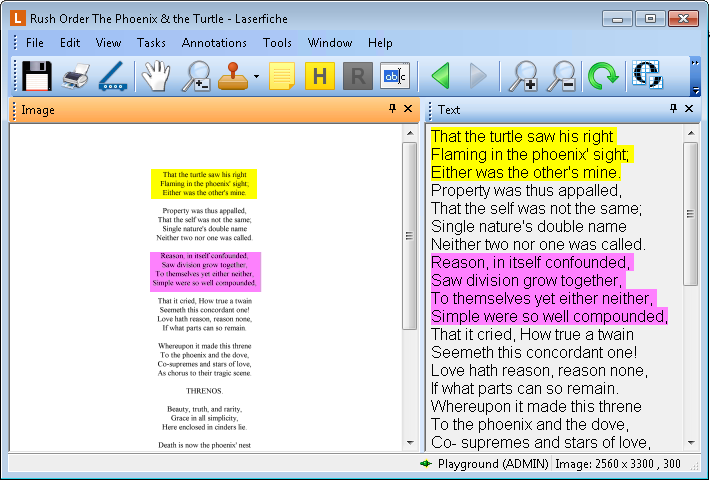
The images and/or text associated with a document can be highlighted, allowing you to place special emphasis on a particular portion of an image or a particular line of text. This annotation type can be linked between the image and text of a document.
Highlighting an image
When in Highlight mode, a portion of an image can be highlighted using the mouse. The selected region will be highlighted in the default color.
Highlighting text
When in Highlight mode, you can highlight text by using the mouse. Text highlights are assigned the default highlight color.
 In the Laserfiche Windows client
- Make sure the Text Pane is visible.
- From the toolbar, click Add Highlight
 , select Highlight from the Annotations menu, or right-click in the Text Pane and select Highlight to switch to Highlight mode.
- Click and drag your mouse to select the desired text.
In the Laserfiche web client
- Make sure the Text Pane is visible, then do one of the following:
- Select Highlight from the toolbar, the Annotations menu, or right-click in the Text Pane, point to Add Annotations and select Highlight. Then, click and drag your mouse to select a region in the Text Pane, release to place the highlight on the text. You can also double-click on specific words to highlight just that word.
- Select a region in the Text Pane by clicking and dragging your mouse. Then, select Highlight by clicking Annotation in the toolbar, by selecting Highlight from the Tools drop-down menu, or by right-clicking, pointing to Add Annotation, and selecting Add Highlight.
Note: By default, adding a text highlight automatically creates an image highlight linked with that text highlight. Learn more.
Related Topics
 , select Highlight from the Annotations menu, or right-click the image, point to Add Annotation, and select Highlight.